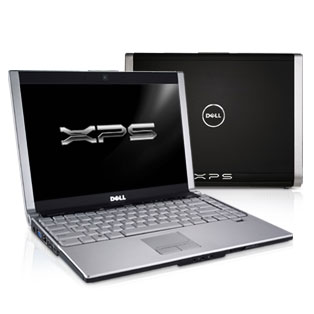
Buying a Computer
(http://www.webclassesonline.net/events/buycomputer/choosingapc.html)
What form?
- Desktop
- Laptop
- Tablet
- Micro Laptop
- Bottom line: Look at whether you need portability or are limited in space; if you are, go for the laptop. I would only look at a tablet if I really needed the features-expensive for what you get. Micro laptops are nice but limited in ports and performance, and many run Linux instead of Windows (see OS discussion)
What Operating System (OS)?
- Windows
- Mac
- Popular among graphic artists and others who need to manipulate images and video
- Not as many programs available as for Windows. However,can turn your computer into a dual booting machine so that you can run either Mac or Windows software, but requires that you purchase a copy of Windows in addition to buying the Mac computer.
- Easy to use interface
- Linux
- Open source OS, so can get it free
- A lot of free open source software available that mimics Windows programs
- Requires more technical knowledge to add hardware or install programs
- Can't run Mac or Windows software
- Used on some micro laptops
- Used on many servers
- Would probably not recommend for a novice user or if you need to exchange files extensively with a Windows or Mac system
- Bottom line: Unless you have a reason that you need a different OS, I recommend getting Windows Vista Home Premium.
Brand
- Every brand has its good points and bad
- Look at what technical support and warranty comes with the system (do you have to mail the unit in for repair? Or can they fix it locally, or even in your own home? )
- Read reviews. Good sites to look at are:
- Bottom line: It's always good to read reviews from a couple of different places if you can find them. Brands I've personally had good luck with are Dell, Lenovo (IBM), and Toshiba
Components
- Processor (CPU-Central Processing Unit)
- Type of Screen
- For a desktop, you have a choice of a standard CRT monitor (takes up more room, heavy, square) or an LCD monitor (lighter, less room-flat instead of square).
- For the laptop, you have a choice of LCD in glossy or standard (glossy looks better in low lighting, but standard looks better (less glare) in outdoor applications or sometimes brightly-lit indoor ones. Also need to decide standard or widescreen; I like the widescreen layout myself, as it gives you more room to stack windows side by side.
- Bottom line: if you can afford it (and they have come down in price a lot), get an LCD. They take up a lot less room. For the laptop, I recommend the wide screen if you can afford it, otherwise the standard is fine. Go with the LCD, and remember that if you will be using the laptop outside or in bright light, you may not want the glossy screen.
- Memory (RAM)
- This is the temporary storage for your computer while it's processing.
- Bottom line: With few exceptions, the more of this you have (higher MB or higher GB) the better. For Windows Vista, have at least 1GB of memory
- Hard Drive
- Provides storage for programs and your data.
- The bigger the better (higher GB), the faster the better (get 7200 rpm instead of 5400 if possible)
- IDE was the old standard type, now you want SATA
- Bottom line: 100GB is plenty for most people. Vista requires at least 40GB.
- Video Card
- Optical Drive
- CD or DVD?
- Generally recommend a DVD +/- RW drive. This allows you to view and burn both CDs and DVDs, in both DVD + and DVD - formats.
- You don't really need two CD/DVD drives, but if you have the option you would only need one of them to be a RW drive, the other could just be to play disks. The advantage of having two is that it is easier to copy from disk to disk, but you can do that even if you only have one drive, it just takes longer.
- An option you see available is one that will read and/or write Blu-ray discs. Blu-ray is a new format that allows up to 50GB of storage on a disk. Regular DVDs allow around 4.7 GB, while CD's store around 750 MB (less than 1 GB)
- Bottom line: At a minimum get a DVD player, if you can get a DVD +/- RW drive, and you only need Blu-Ray if you're wanting to watch discs that were created in that format or want to burn discs that have a high storage capacity. Blu-ray is an expensive option right now, though.
- Modem-Used when connecting to the internet using a dial-up connection.
- Networking Options
- Ethernet Card-used when connecting to a wired network, needed if you want to get on the internet using high speed options like DSL, Cable, Satellite, and others
- Wi-fi card (wireless ethernet card)-used when connecting to a wireless network. Not seen as much in desktops, but handy in a laptop because then you can connect to Wireless hot spots that are available for free in many public locations, and if you want can set up a wireless network in your home so you can connect to the internet without plugging your laptop into a wire
- Bluetooth-Used to set up a limited range network between devices. Common uses include wireless keyboards, wireless mice, and synchronizing with smart phones or pda's. Not seen as much on desktops, but nice on laptops if you can afford it.
- Mobile Broadband card-An option offered by some manufacturers. Requires a broadband account with a cellular provider such as Verizon or Sprint. Cost is around $60/month, but then you can connect to the internet from almost anywhere with your laptop. The connection CANNOT be shared with another computer unlike other broadband options like DSL or Cable, so each connection requires another $60/month account.
- Bottom Line: For a desktop, only an Ethernet card is really required unless you plan on setting a wireless network up for it to use. For a laptop, I recommend getting both an Ethernet and a Wireless Ethernet (Wi Fi) card. If you have extra money, go for the Bluetooth as well. Only get the mobile broadband card if you need "go anywhere" internet connectivity and don't mind the $60/month charge.
- Other Options:
- Battery Options-If you get a laptop, you may have different battery options. If you don't plan on running it on the battery much (i.e., you're planning on using it in locations where you can plug it in most of the time), then it's not as critical to get a high capacity battery (which lets you go longer between charges). If you plan on using it extensively without being plugged in, then it might be worth it to pay the extra cost to get the highest capacity battery available, and maybe even get an extra.
- Sound Cards-You want one, but you only need a good one if you're a real audiophile who will be using your computer as a sound system or want great sound on your games. For most people the ability to drive stereo (two) speakers is sufficient. If you are really into sound, then look for a card that offers support for multiple speakers, maybe even surround sound. Soundblaster and Altec-Lansing are two big names in sound cards if you are looking at getting a higher end system.
- Media Card Readers-If you use a digital camera, some computers offer built in media card readers so you can plug the card from the camera into the computer directly and transfer the pictures to the hard drive. This isn't a "must have" option, but it can be nice. If this is an option, be sure that the size of media card the computer will read matches what your digital camera uses.
- Keyboards-Can get wired or wireless keyboards. Keep in mind that if you get a wireless keyboard, you will need to periodically replace the batteries. They also tend to have more trouble than wired keyboards.
- Mice-Can get wired or wireless mice. Keep in mind that if you get a wireless mouse, you will need to periodically replace the batteries. They also tend to have more trouble than wired mice. Regardless of whether you get wired or wireless, I recommend that you go with the optical rather than the trackball mouse. Optical mice use light rather than a rolling ball to track where to go, and thus don't get clogged up like the balls tend to.
- Printers-Options include laser or deskjet. Look at cost per page, how fast it prints, availability of toner, duplexing (printing on both sides of the page), whether it has a built in scanner and fax if needed (also known as an all-in-one).
- Other-there are other accessories you can buy for computers as well, such as scanners, game controllers, numeric keypads (if your keyboard doesn't have one already), etc. If you need any of these, see if the store offers any discounts if you purchase it with your new computer.
Where Should I Purchase the Computer?
There are several different options:
- Direct from the Manufacturer's Website
- From a retailer (or e-tailor)
- Online deal sites (**Make sure you look at the seller ranking and also check the seller out at the Better Business Bureau Site (www.bbb.com) before buying**)
- Used Computers
- Generally, I would never buy a used computer unless it was so cheap that I didn't care if it worked or not (i.e., $10 at a garage sale). There are a lot of things that can cause a computer to have intermittant issues. Unless you know how to repair computers yourself, chances are that you could end up in a situation where repairing the "bargain" you just bought would cost more than just buying a new one.
- The only exception to the rule would be refurbished computers off of the manufacturers website (for example, at www.dell.com/outlet). These usually include a warranty, and can be returned if there is a problem
Happy Shoppping!