Handout-Values, Fonts, Colors, Accessibility
What we will cover:
-
Values and units
-
Fonts
-
Text properties
-
Web Accessibility as it relates to these materials
Values and units
-
Units affect a number of features of many properties
-
We have already used them in previous classes - such as margin: 20px;
-
-
CSS accepts two types of numbers
-
Integers (typically whole numbers both positive and negative) - 20px is an example
-
Real numbers (typically a whole number followed by a decimal point followed by a number) 0.4em is an example
-
Percentages
-
This is a calculated real number followed by a % sign
-
These are typically relative to something else
-
For example, if I specify a font-size of 150% this will be 1.5 times the "normal" browser font size
-
Recall that this can be affected by user stylesheets
-
Colors
-
Named colors
-
CSS 2 - 17 named colors (16 below, plus orange)
-
Chart shamelessly stolen from W3C site

-
-
Colors (2)
-
X11 Color Specification supports about 140 choices (CSS3) -http://www.w3.org/TR/css3-iccprof#x11-color
Partial chart:

Representing colors
-
From the previous chart, you may note that you can code colors by hexadecimal value or RGB value
-
For example - goldenrod is
-
#DAA520 in hexadecimal or
-
rgb(218,165,32) - range is from 0 - 255
-
-
You can also represent colors as percentages of RGB
-
For example rgb(85%,64%,12%) should also be close to Goldenrod
-
Representing colors (2)
-
Colors may be clipped in some browsers
-
For example, not all browsers support fractional percentages (such as 25.4%)
-
These should be rounded to the nearest integer
-
-
Most browsers will expect a range of 0% to 100%
-
Anything outside that range is moved to the boundary
-
-42% becomes 0%
-
123% becomes 100%
-
-
-
-
If you want to convert, multiply percentages by 255 and you should get the RGB values in decimal form
Hexadecimal colors
-
This is an example of the web safe hexadecimal colors
-
Values are paired 00, 33, 66, 99, CC, FF (note AA is taken up by Microsoft - which is why there are 256 - 40 or 216 web safe colors)
**Note from Shari: though the web safe pallette is not as essential as it used to be due to improvements in technology, I tend to use them where I can just to be on the safe side. It is a good idea to view your pages on different systems/platforms to see how they appear, and if you have a color discrepency, try using a web safe color instead. I had a situation not too terribly long ago where we were trying to make the text color match a green in the banner photo. I used photoshop to come up with the color code, plopped it into the css, and figured that would be that. Looked great on my computer. I had a friend look at it, though, and it was a completely different result. We switched it to a web safe color that was as close as we could get to the green we were trying to match, and then it looked good on both computers. So while many say web safe colors are an outdated concept, I still find them useful from time to time.
-
If the hexadecimal digits are matched pairs, you can safely shorten them for most browsers
-
#00CCFF becomes #0CF
-
Browser takes each digit and replicates it (if you provide shortened version)
-
-
-
Length units
-
Typically use positive or negative numbers (may be integers or real numbers)
-
Two groups
-
absolute lengths
-
Inches (in), centimeters (cm), millimeters (mm), points (pt), pica (pc)
-
Points - 72 points to the inch
-
Pica - 6 picas to the inch (12 points to the pica)
-
More useful for print with CSS - monitor resolutions can be a problem
-
-
relative lengths (next)
-
Length units (2)
-
Relative lengths
-
em-height (em),ex-height (ex), pixels (px)
-
If font-size is 14 pixels, then 1 em is 14 pixels
-
ex refers to height of lowercase x of font being used
-
If two paragraphs have different fonts, it is possible to have different ex heights for a value of 12ex
-
In reality, many browsers get ex value by dividing em value by 2
-
Difficult to compute ex values unless they are built in to font (most don't)
-
-
-
-
But if use pixels, some browsers (pre IE 7) can not resize text
MeasureIt
-
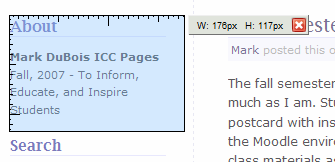
I like this Firefox add-on
-
Click on ruler and you can measure items on the screen
URLs
-
Mostly for imported CSS
-
@import url([protocol][server][path]file)
-
Do not include a space between url and the parentheses
-
If file is in same folder, @import url(file.css)
-
Aural CSS
-
Much of this is not supported in current user agents
-
Angle values (direction from which sound should originate)
-
Time values (delays between speaking elements)
-
Frequency values (frequency of sounds produced)
Fonts
-
Big problem with web pages - you have no idea what user agent on which operating system is viewing your page
-
Fonts are not automatically applied (may not exist on a given machine)
-
Obviously we want to avoid the deprecated <font> element
-
CSS helps, but is not a panacea
Font families
-
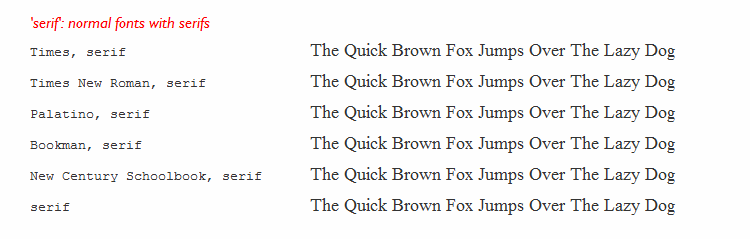
Serif - proportional (with serifs)
-
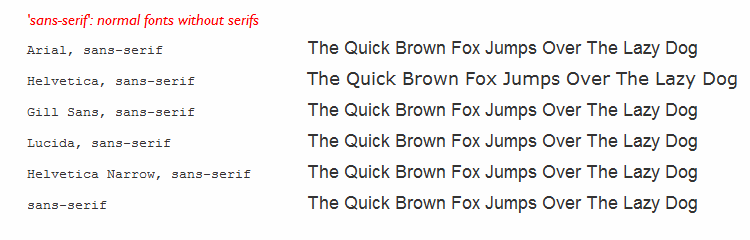
Sans Serif - proportional (lack serifs)
-
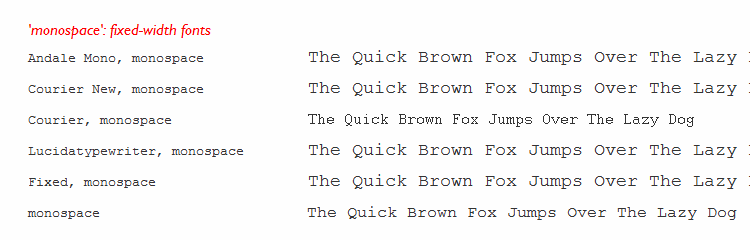
Monospace - each character is same width
-
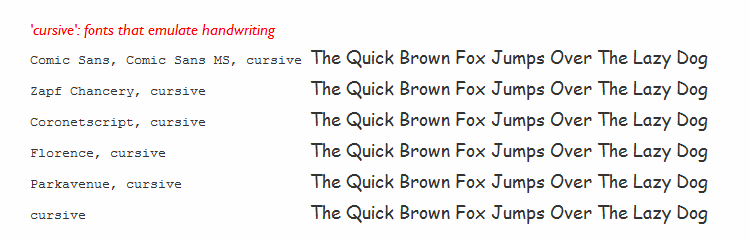
Cursive - simulate handwriting
-
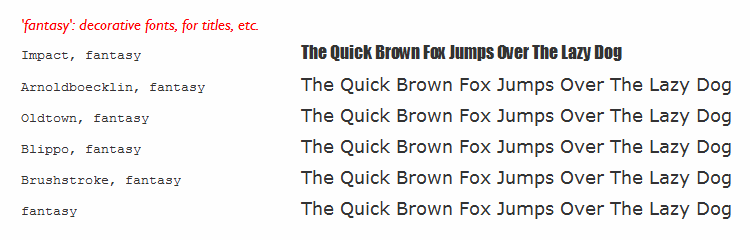
Fantasy - none of the above
-
The Font Examples that follow are from: http://www.w3.org/Style/Examples/007/fonts
Serif Font Examples
Sans Serif Font Examples
Monospace Font Examples
Cursive Font Examples
Fantasy Font examples
Did you notice?
-
If you examine the previous slides, many of the fonts look almost identical (or seem to)
-
WHY? (code is below)
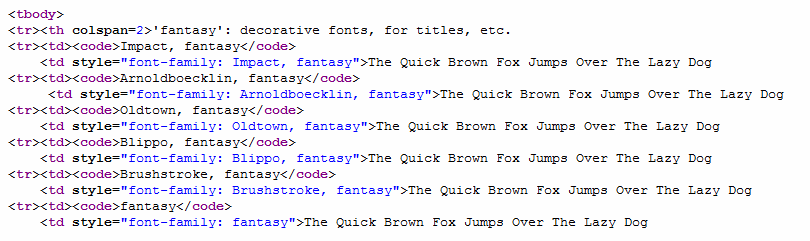
- Because if the computer does not have the specified font, it goes to the font family that is specified, and if it doesn't have that, it goes to the default font.
-
Specifying fonts with CSS
-
Generic font family
-
body { font-family: sans-serif; }
-
-
Specific font family
-
body { font-family: Verdana; }
-
If a font family has spaces in it - Times New Roman, for example, surround it with quotes
-
Single or double? If inline style, single makes more sense - since style is in double quotes
-
I tend to use linked CSS and typically use double quotes
-
-
Font Weights
-
h2 {font-weight: bold; }
-
Default value is normal
-
Other values include bold, bolder, lighter, numeric, or inherit
-
Numeric has levels of weight 100 is lightest, 900 is heaviest
-
-
Typically, I use bold or bolder
-
Latter works its way up numeric values (unless you are already at 900)
-
-
Font Size
-
h2 { font-size: x-large; }
-
Default value is medium
-
Other values include: xx-small, x-small, small, large, x-large, xx-large, smaller, larger, length, percentage, inherit
-
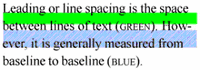
Font size is set as distance between baselines without any line-height
-
Most of these are relative to each other
-
From accessibility perspective use designated sizes (i.e., small, large, etc.) or percentages
-
Font Style
-
Default value is normal
-
Other choices are italic or oblique (or inherit)
-
Most web browsers don't display differences between italic and oblique
-
If you want to learn the difference - look in your book - page 115
-
Typically I would specify
h3 { font-style: italic; }
-
-
-
Font-variant is discussed in book as well, I usually use text-transform instead
Font property
-
Grouping for all previous - it is a shorthand property
-
Can place font-style, font-variant, and font-weight
-
Must also include font-size and font-family
-
-
There are shorthands - page 122
-
I tend not to use these - try to be more specific
Font matching
-
Each computer will have a database of fonts
-
If there is a match with a font, that is what will display
-
If not, will need to examine font-style, font-variant, font-weight, font-size
-
If there are problems, tries alternate fonts in same family
-
If there are still problems, tries generic font family
-
-
You can force the downloading of a specific font (page 127)
-
Is this a good idea?
Hint: NO!!!!. That means the user agent has to wait for the font to download and install before the page can be displayed, IF it can download the font at all. DON'T DO IT.
-
Text Properties
-
Indentation
-
p {text-indent: 2 em; }
-
Can also use negative number (if you do, use padding so it doesn't display beyond left margin of browser window)
-
Consider that some may increase or decrease the font to see the page more clearly
-
Text Alignment - Horizontal
-
p { text-align: center; }
-
Typically left, center, right
-
Don't recommend justify
-
-
Note that center only affects text
-
I will provide an alternative for other objects a little later
-
-
Text Alignment - Vertical
-
p { line-height: 14px; }
-
Values: length, percentage, number, normal, inherit
-
Controls leading
-
-
span.upper { vertical-align: super; }
-
Super-scripting (and sub-scripting)
-
-
img { vertical-align: text-bottom; }
-
If you want to align to bottom
-
Word and letter spacing
-
p { word-spacing: 0.5 em; }
-
Positive value increases space between words
-
Negative value decreases space between words
-
Words are strings of non-whitespace characters surrounded by whitespace
-
Be careful or documents will not be readable
-
-
p { letter-spacing: 0.25em; }
-
Also increase or decrease spaces
-
Text transformations
-
p { text-transform: uppercase;}
-
Uppercase, lowercase, capitalize are commonly used
-
With capitalize, only the first letter of the word is affected (if something else in the word is capitalized, it remains so)
-
Personally, I find this a very handy CSS property when working with text
-
Easy to manipulate without having to change HTML
-
Text Decoration
-
Used to remove underlining on links (typically)
-
a { text-decoration: none;}
-
Other choices are underline, overline, line-through and blink (never use the latter)
-
Text-decoration is generally not inherited
Text shadows
-
p { text-shadow: silver 2px 2px 2px;}
-
Set shadow's color
-
Set distance from the text (right, bottom, blur radius)
Example
-
When done "properly" you can even render text unreadable to sighted visitors
-
Lists
-
Think of navigation bars as a set of links
-
Essentially a list of links (best practice)
-
Display: inline vs. display: block
-
list-style:none;
-
-
<ul id="mainNav">
<li><a href="/">Home</a></li>
<li><a href="/community/">Community</a></li> <li><a href="/education/">Education</a></li> <li><a href="/certification/">Certification</a></li> <li><a href="/join/">Join WOW</a></li>
<li><a href="/about/">About Us</a></li>
</ul>
CSS for lists
-
ul {
list-style-type: none;
width: auto;
margin: 0;
padding: 0;
}
li {
float: left;
}
Use meaningful markup
-
The goal is to mark up your content based on its significance, not the way it's going to look
-
Headers signify headers (h1 does not mean "big bold and ugly")
-
Paragraphs are used to denote paragraphs
-
Use of lists for all list-based structures including navigation
-
Correct use of tables (they aren't evil if used correctly!)
Think structure, not design
-
Meaningful markup means more meaningful content
-
Combine structure with meaningful markup
-
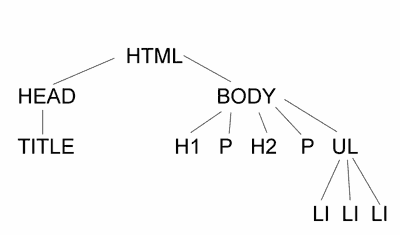
Understand that this creates a document tree
-
Document trees form the skeleton upon which we will "dress" our content up with style
-
Document trees also form the foundation for the behavior layer
-
Knowing your document tree is one of the primary steps toward mastering standards-based design
HTML document
Accessible web pages
-
We have spent a lot of time working with CSS properties
-
Can do a lot with text
Some steps to consider (some are optional)
-
Base design on CSS (use this for all formatting)
-
Think in terms of a linear page
-
Think in terms of headers (audio visitors may navigate by headers)
-
Others will navigate by links
-
Consider including a skip navigation link (may not want this to be off screen as some audio browsers will not process) - instead can have same color as background (may want both)
Accessible web pages
-
Tools to consider
-
Functional accessibility evaluator -http://fae.cita.uiuc.edu/
-
Firefox accessibility extension -http://firefox.cita.uiuc.edu/
-
Use a tool like Opera
-
Turn off images
-
Use a high contrast stylesheet
-
Disable tables
-
Disable author CSS
-
Can you still find information on the page?
-
-
Lab 2
-
Build one accessible web page
-
Must make it past Functional Accessibility Evaluator
-
Page should contain navigation (as styled list)
-
Page should include skip navigation link (styled to be invisible - either off the page or same color as background)
-
Content should have header structure (h1 is most important, h2 is next - can be multiple)
-
Content should linearize
-
Summary
- Focused on additional CSS properties
- Emphasis has been on text and fonts
- Need to develop accessible web pages